
Hosting your own FiveM server used to be annoying.
You had to download files, set up FXServer, mess around with TXAdmin, edit server folders manually, manage your server.cfg, sort out backups yourself and hope nothing broke when you added a new resource.
That is fine if you already know what you are doing. But for most new FiveM server owners, it is a messy way to start.
In this guide, we are going to show you how to host your own FiveM server on your PC using HTN Panel, a local game server control panel built by HTNetwork.
With HTN Panel, you can install your FiveM server, manage files, start and stop the server, create backups, edit settings, add mods and give developers safe remote access - all from one application.
What is a FiveM server?
A FiveM server is a custom multiplayer server for GTA V, usually used for roleplay, freeroam, racing, police communities, economy servers and custom modded gameplay.
Instead of just playing normal GTA Online, FiveM lets communities build their own GTA V multiplayer experience using custom scripts, maps, vehicles, jobs, frameworks and server rules.
Popular FiveM server types include:
- Roleplay servers
- Police and emergency services servers
- Economy servers
- Freeroam servers
- Drift and racing servers
- Private servers for friends
- Development and testing servers
If you want to build your own FiveM community, test scripts, create a roleplay server or learn FiveM development, hosting a server on your own PC is one of the easiest ways to start.
Can you host a FiveM server on your own PC?
Yes, you can host a FiveM server on your own PC.
This is usually called local hosting. It means the server runs directly from your computer instead of from a rented VPS or dedicated game server.
Hosting a FiveM server on your PC is useful if you want to:
- Test scripts before putting them on a live server
- Build a server before paying for hosting
- Create a private server for friends
- Learn how FiveM servers work
- Develop resources locally
- Run a small community from your own machine
However, local hosting also has some downsides if you do it manually. You normally have to manage server files, TXAdmin, backups, folders, ports and settings yourself.
That is where HTN Panel makes things much easier.
The easiest way to host a FiveM server on your PC
The easiest way to host a FiveM server on your PC is to use HTN Panel.
HTN Panel turns your own PC or Windows VPS into a game server control panel. Instead of manually setting up everything yourself, you can deploy and manage your FiveM server directly through the app.
With HTN Panel, you can:
- Install a FiveM server on your PC
- Choose CFX Default, QBCore, Qbox or ESX
- Add your FiveM CFX key
- Start and stop the server
- View server console output
- Monitor CPU, RAM, storage and network usage
- Edit server files inside the app
- Create backups before adding mods
- Restore backups if something breaks
- Give developers remote access safely
- Change server settings without manually editing everything
- Install supported mods such as vMenu with one click
The main benefit is simple:
You do not need to keep jumping between TXAdmin, File Explorer, random folders and manual config files just to run your server.
What you need before starting
Before setting up your FiveM server, you will need:
- A Windows PC or Windows VPS
- GTA V and FiveM installed
- An HTNetwork account
- HTN Panel installed
- A FiveM CFX Keymaster key
- Enough storage space for your server files
- A stable internet connection
For a private test server, you do not need anything extreme. But if you are planning to host a public community, you will eventually want a proper VPS or dedicated hosting environment for better uptime, networking and performance.
Step 1: Download HTN Panel
First, go to the HTN Panel page on the HTNetwork website.
Download the HTN Panel application and save the .exe file somewhere easy to find, such as your desktop.
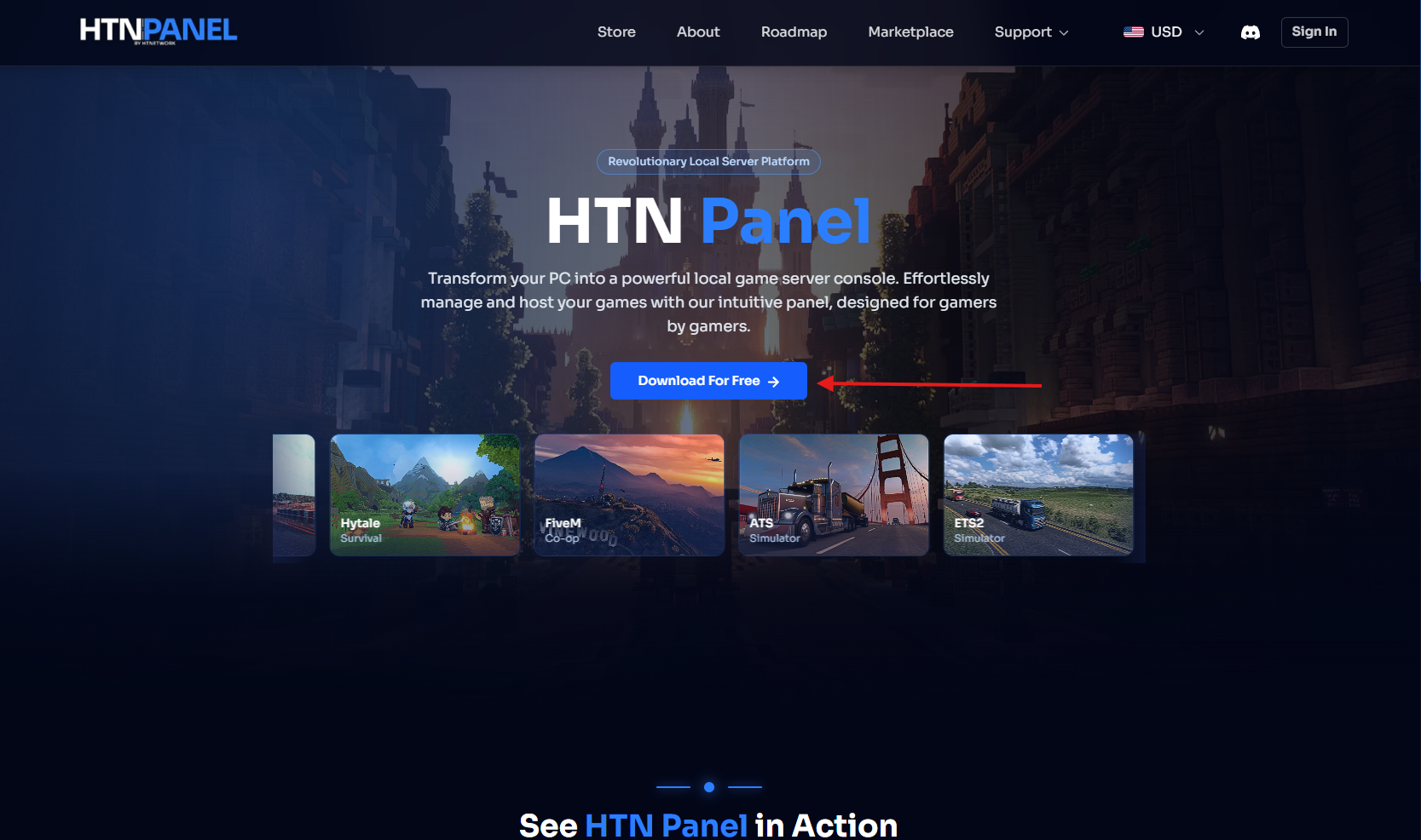
Once downloaded, open the installer and follow the setup wizard.
After installation, launch HTN Panel. If an update is available, the application will update automatically before opening the dashboard.
Step 2: Sign in or create an HTNetwork account
When HTN Panel opens for the first time, you will be asked to sign in to your HTNetwork account.
If you already have an account, sign in.
If you do not have one, create an account directly through the app.
Your HTNetwork account links the panel to the wider HTNetwork ecosystem, including HTN Panel products, VPS hosting, server packages and support.
Step 3: Open the HTN Panel store
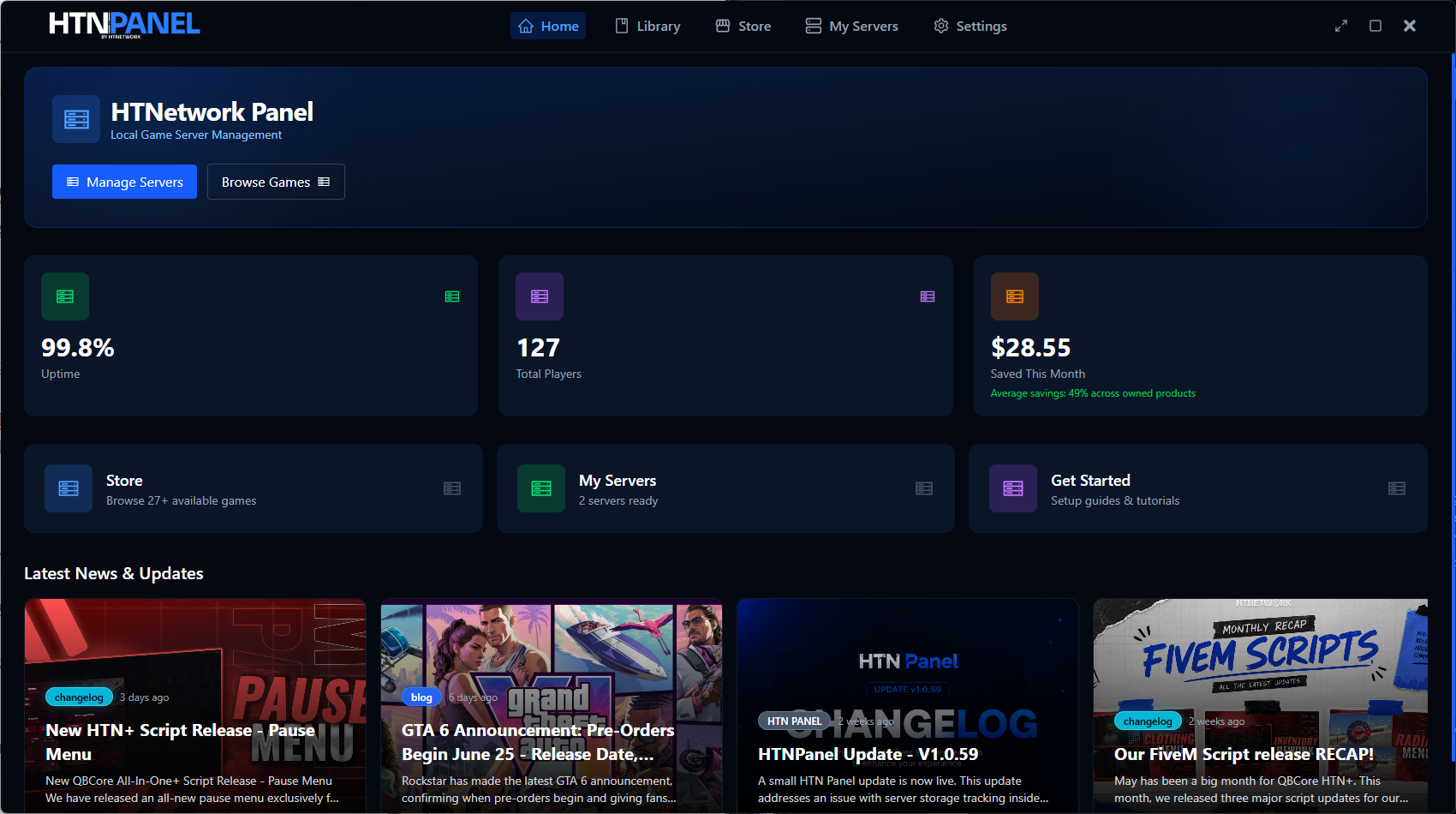
Once you are signed in, you will land on the HTN Panel dashboard.
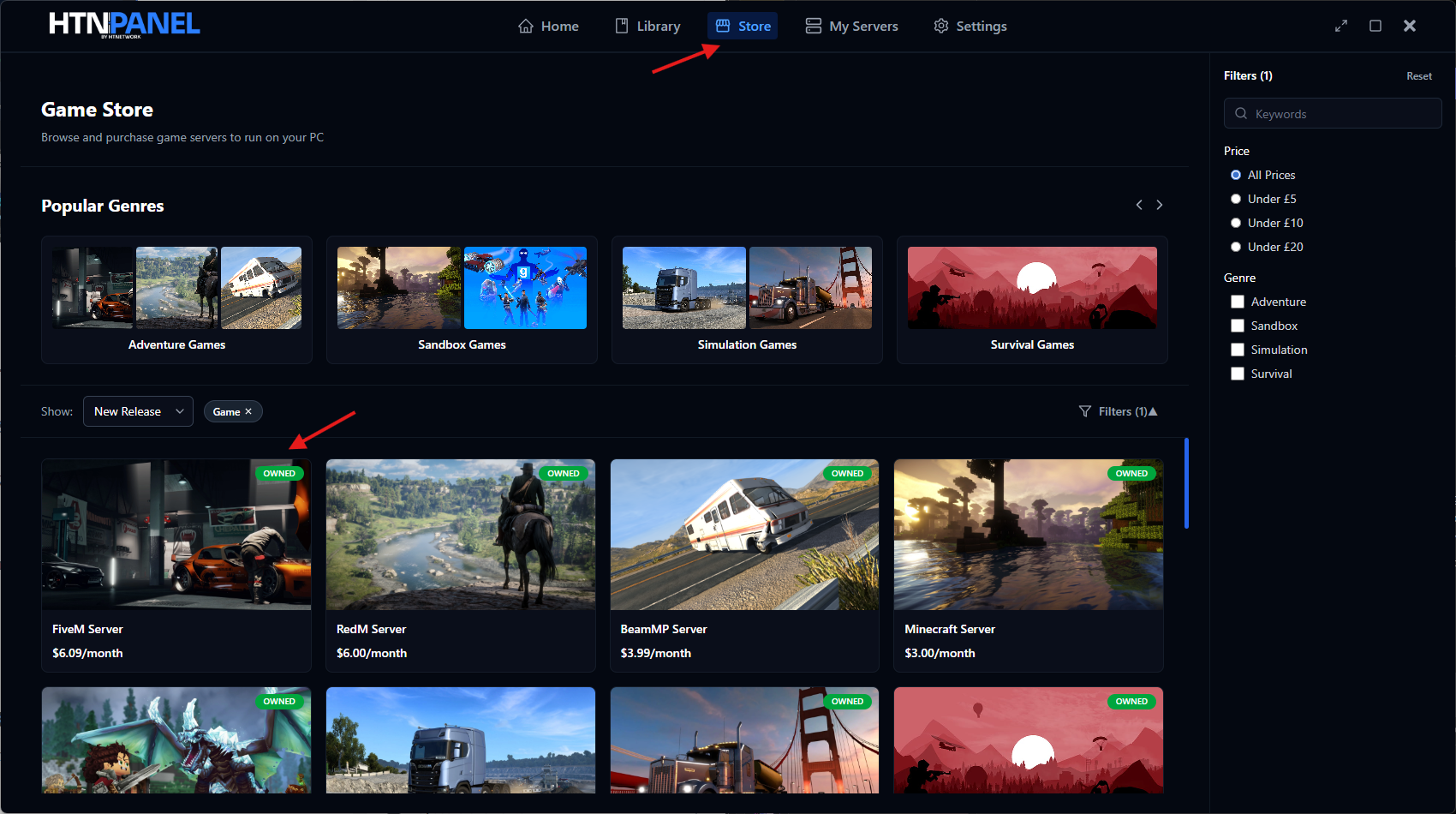
From here, open the Store inside the app and select the FiveM Server option.
This is where you can activate FiveM server hosting through HTN Panel and add it to your library.
After purchasing or activating the FiveM server option, go to your Library. You should now see FiveM available as a game you can deploy.
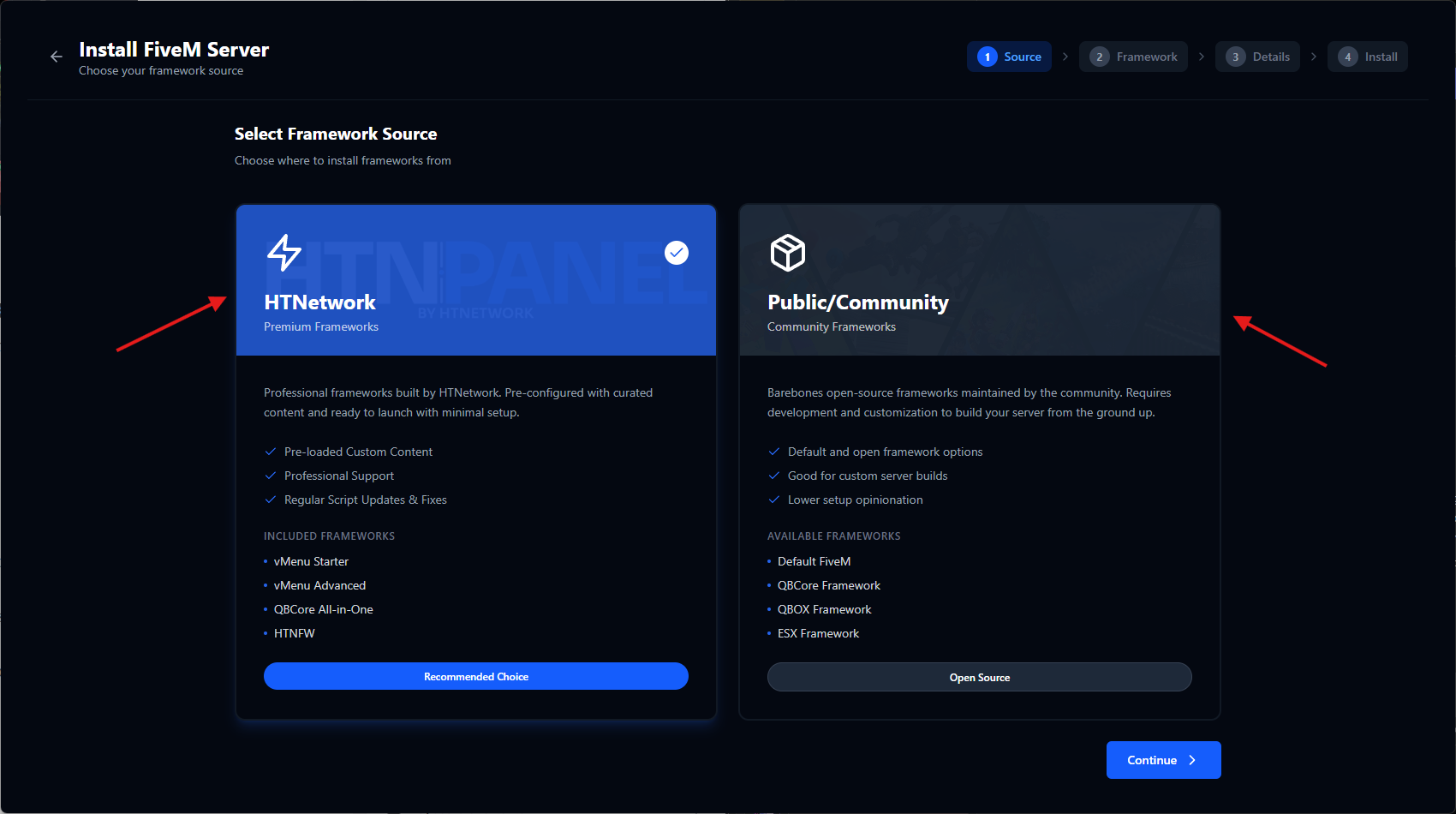
Step 4: Choose your FiveM server type
When deploying your FiveM server, HTN Panel gives you different setup options.
You can choose public/community frameworks such as:
- CFX Default - best for a basic blank FiveM server
- QBCore - popular for roleplay servers
- Qbox - a modern framework option
- ESX - one of the most widely used FiveM roleplay frameworks
If you are just testing or learning, CFX Default is a good place to start.
If you are building a roleplay server, QBCore, Qbox or ESX may be better depending on the scripts and server style you want to use.
Step 5: Add your server details
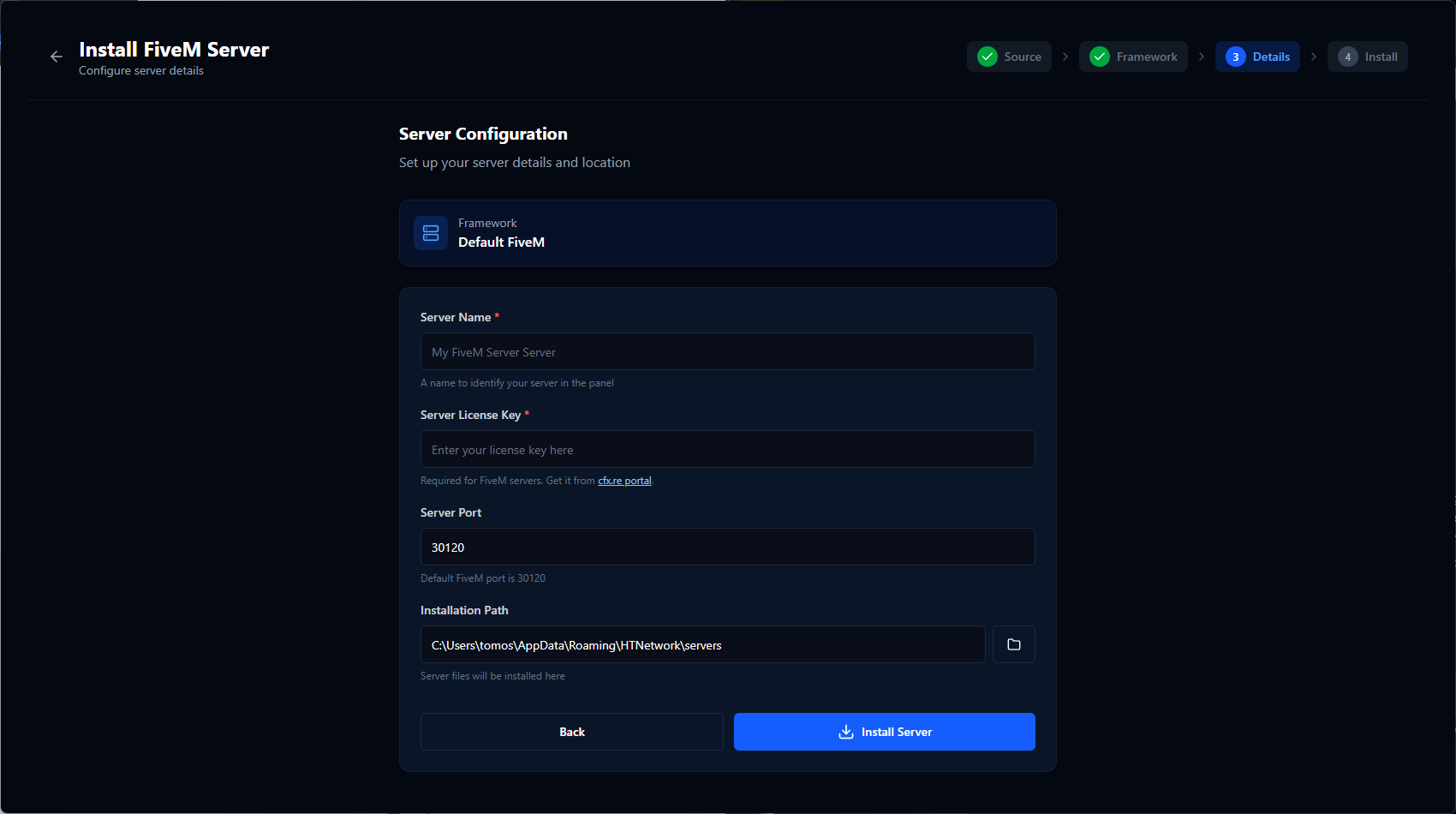
Next, HTN Panel will ask you for your server details.
You will need to enter:
- Your server name
- Your FiveM CFX Keymaster key
- Your server port
- Your installation path
Your server name can be anything you want. For example:
My Roleplay Server
You will also need your FiveM CFX key. This is required for your server to authenticate properly.
HTN Panel will automatically fill in the standard FiveM port:
30120
For most users, you can leave this as it is.
If you want to run more than one FiveM server on the same machine, you can use a different port for the second server.
For the installation path, most users should leave the default path. Only change it if you specifically want the server installed somewhere else.
Step 6: Install the FiveM server
Once your details are filled in, click Install Server.
HTN Panel will automatically set up the FiveM server on your PC.
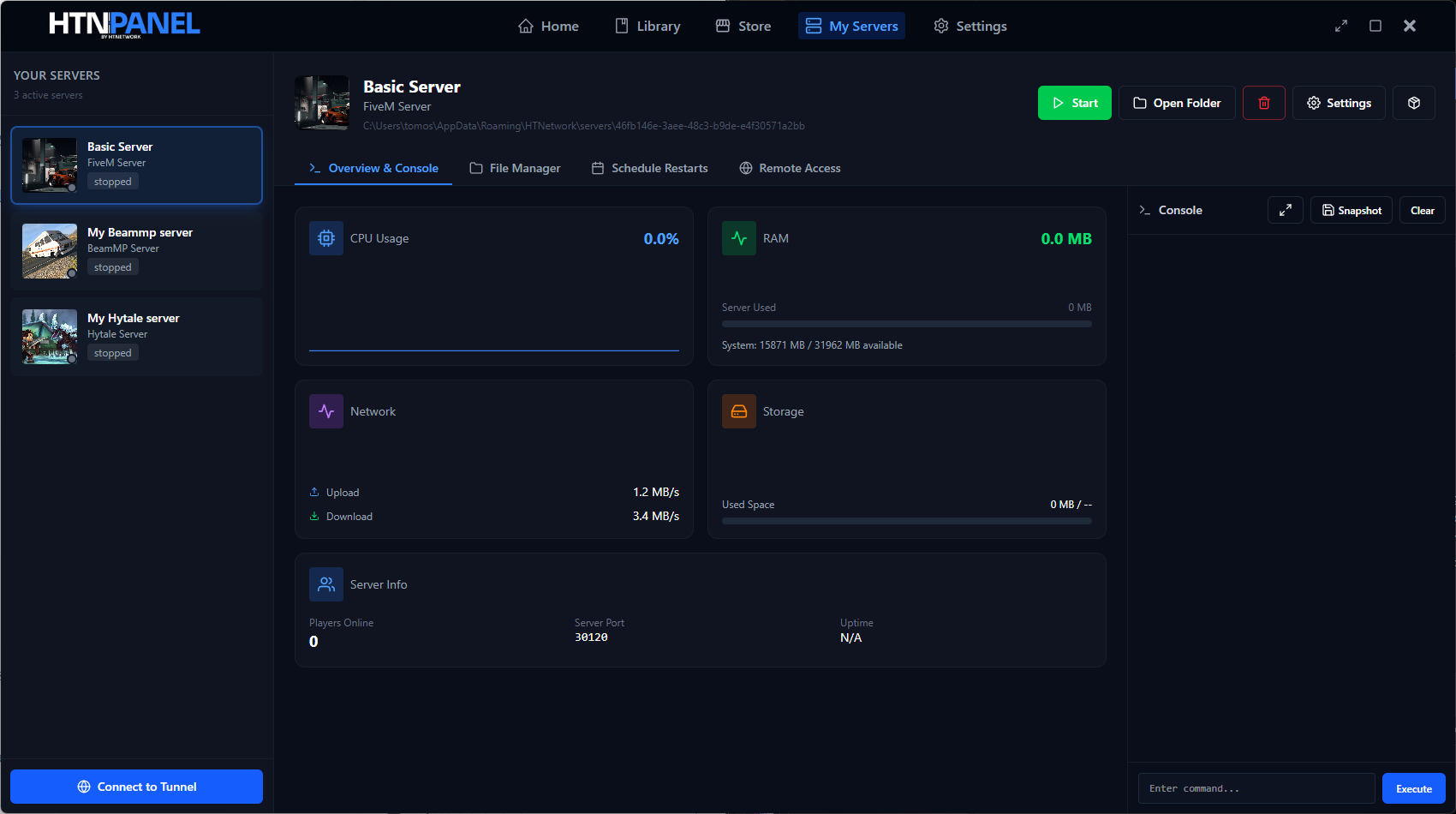
After the install finishes, you will be taken to your FiveM server dashboard inside HTN Panel.
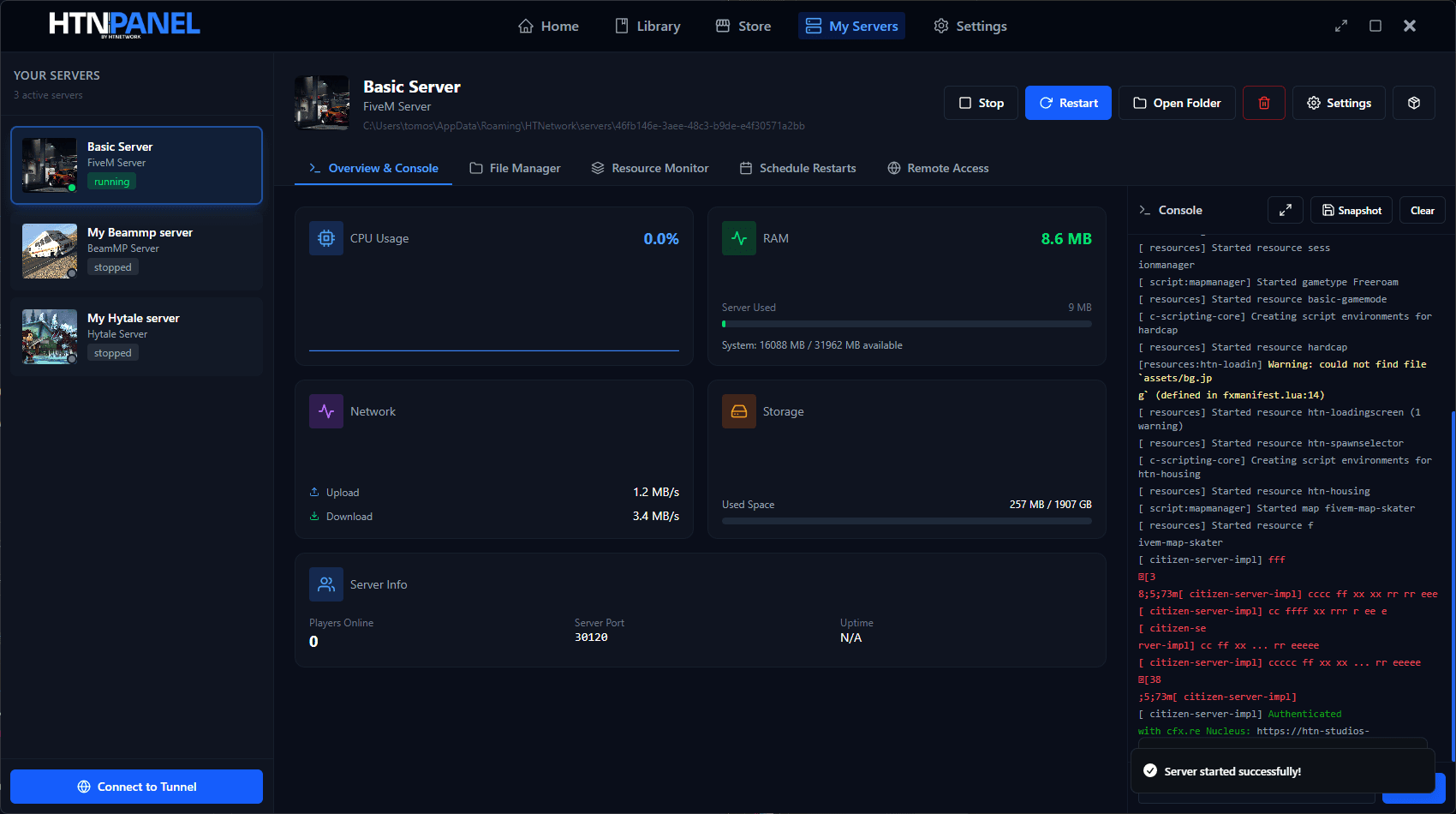
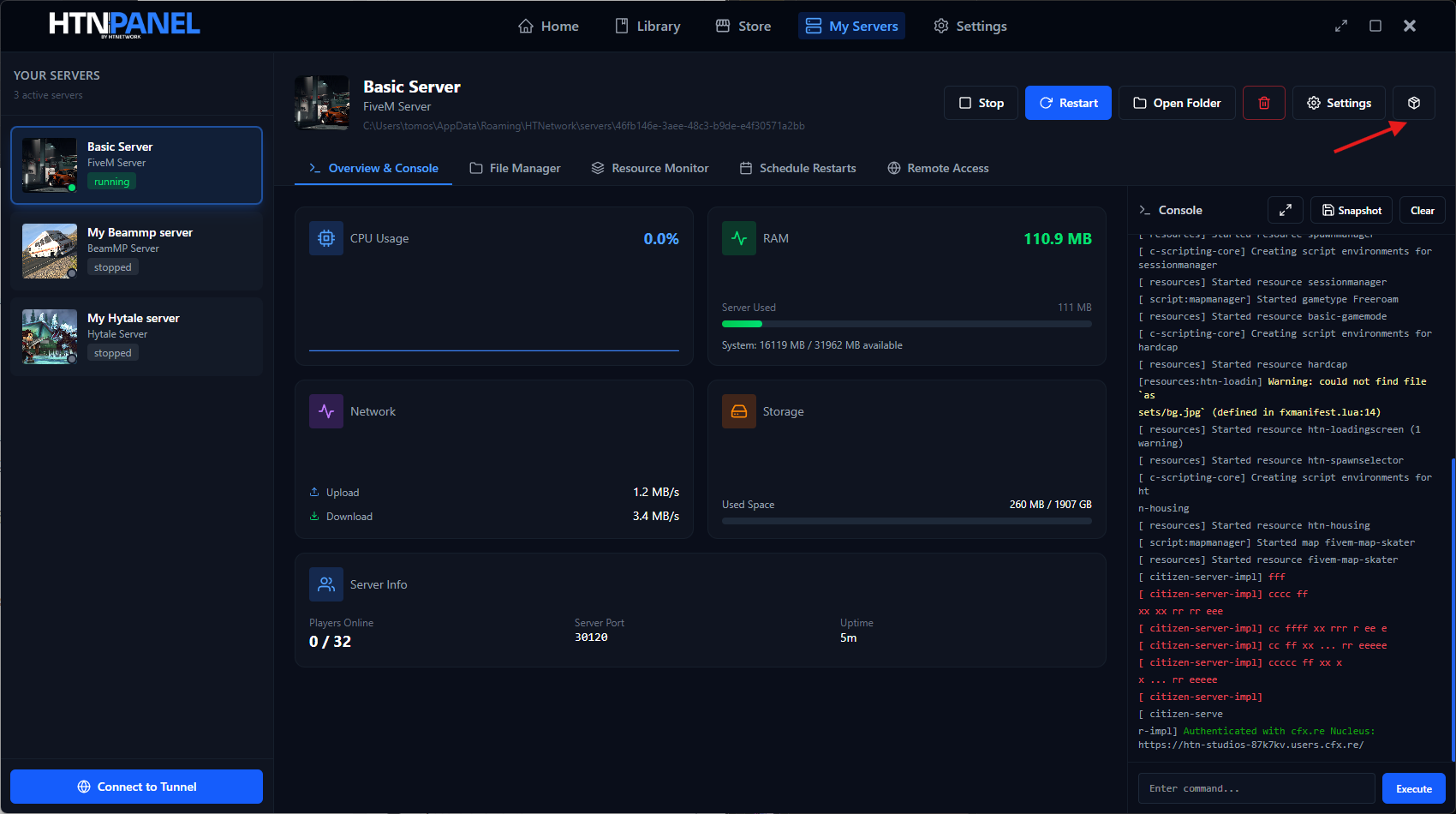
From this dashboard, you can see:
- Server status
- CPU usage
- RAM usage
- Network usage
- Storage usage
- Server information
- Server console
- Start/stop controls
- Server settings
The key benefit here is that the panel shows usage for the FiveM server itself, not just your whole PC.
That makes it easier to understand how much resource your server is actually using.
Step 7: Start your FiveM server
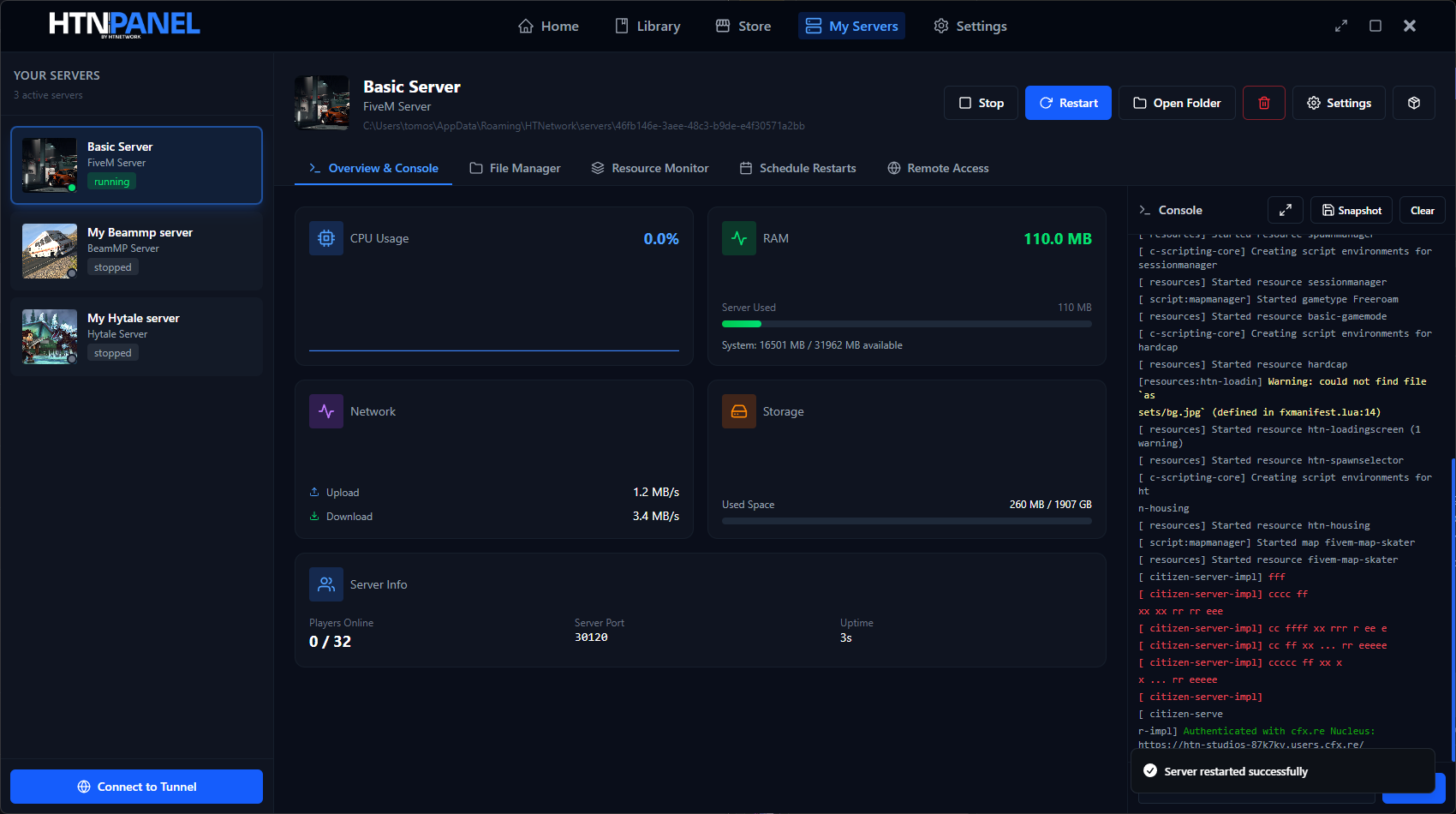
To start your FiveM server, click the Start button inside HTN Panel.
The console will show the server booting up and authenticating with your CFX account.
Once the server is ready, you can connect to it through FiveM.
You do not need to manually open a separate server console or keep switching between different tools. The server console is built into the panel.
You can also fullscreen the console and run server commands directly from the app.
Step 8: Manage your server files
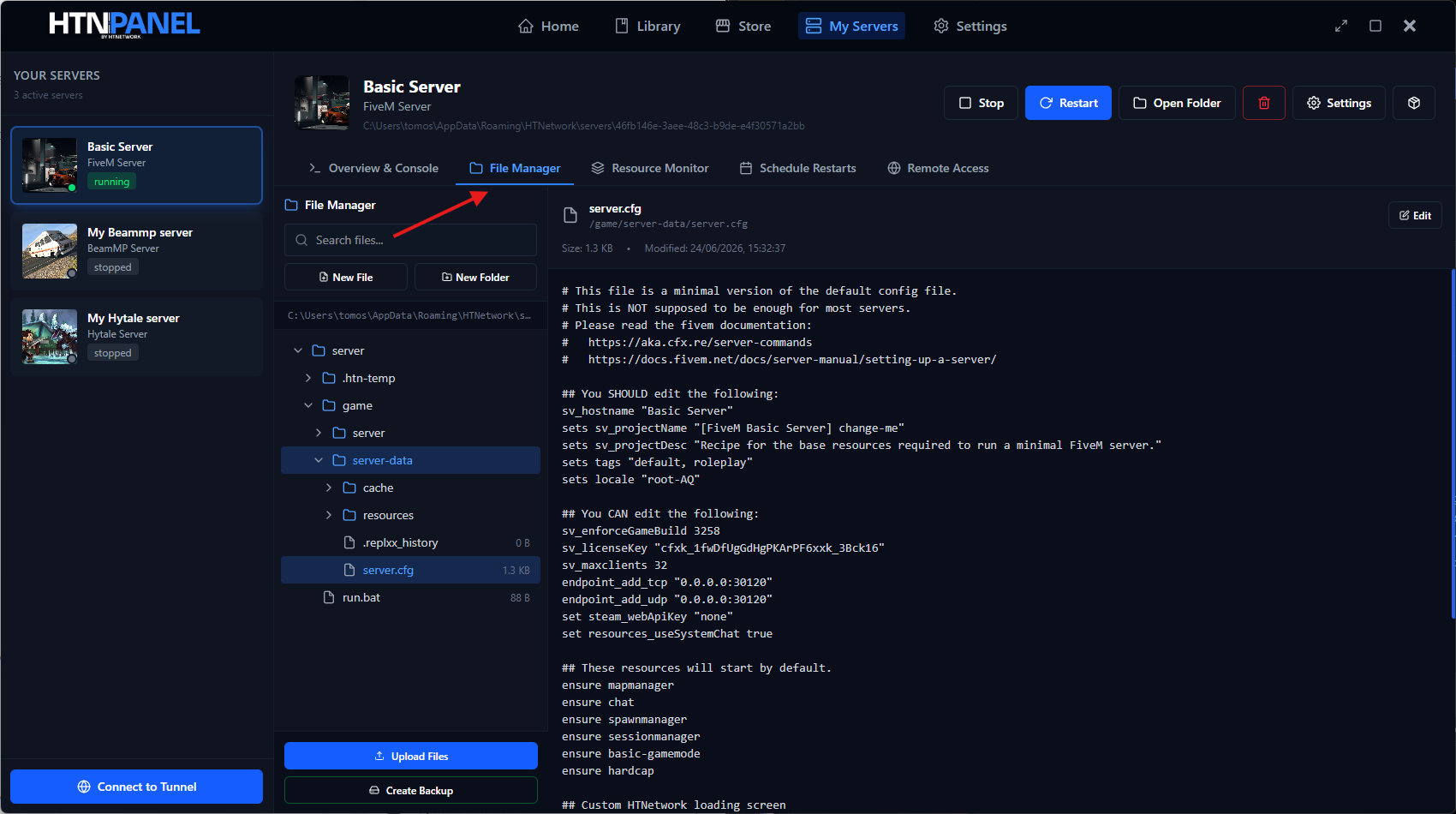
One of the biggest advantages of HTN Panel is the built-in file manager.
Instead of opening File Explorer and digging through folders manually, you can manage your server files directly inside the app.
You can:
- Upload files
- Create new folders
- Create new files
- Edit files
- Preview files
- Modify your
server.cfg - Add new resources
- Save changes from inside the panel
For example, if you need to edit your server.cfg, you can open it in the file manager, make the change, save it and restart the server.
That removes a lot of the messy beginner mistakes people make when manually managing a FiveM server.
Step 9: Create backups before adding mods
FiveM servers break easily when you start adding scripts, maps, vehicles or resources without knowing what you are doing.
That is why backups matter.
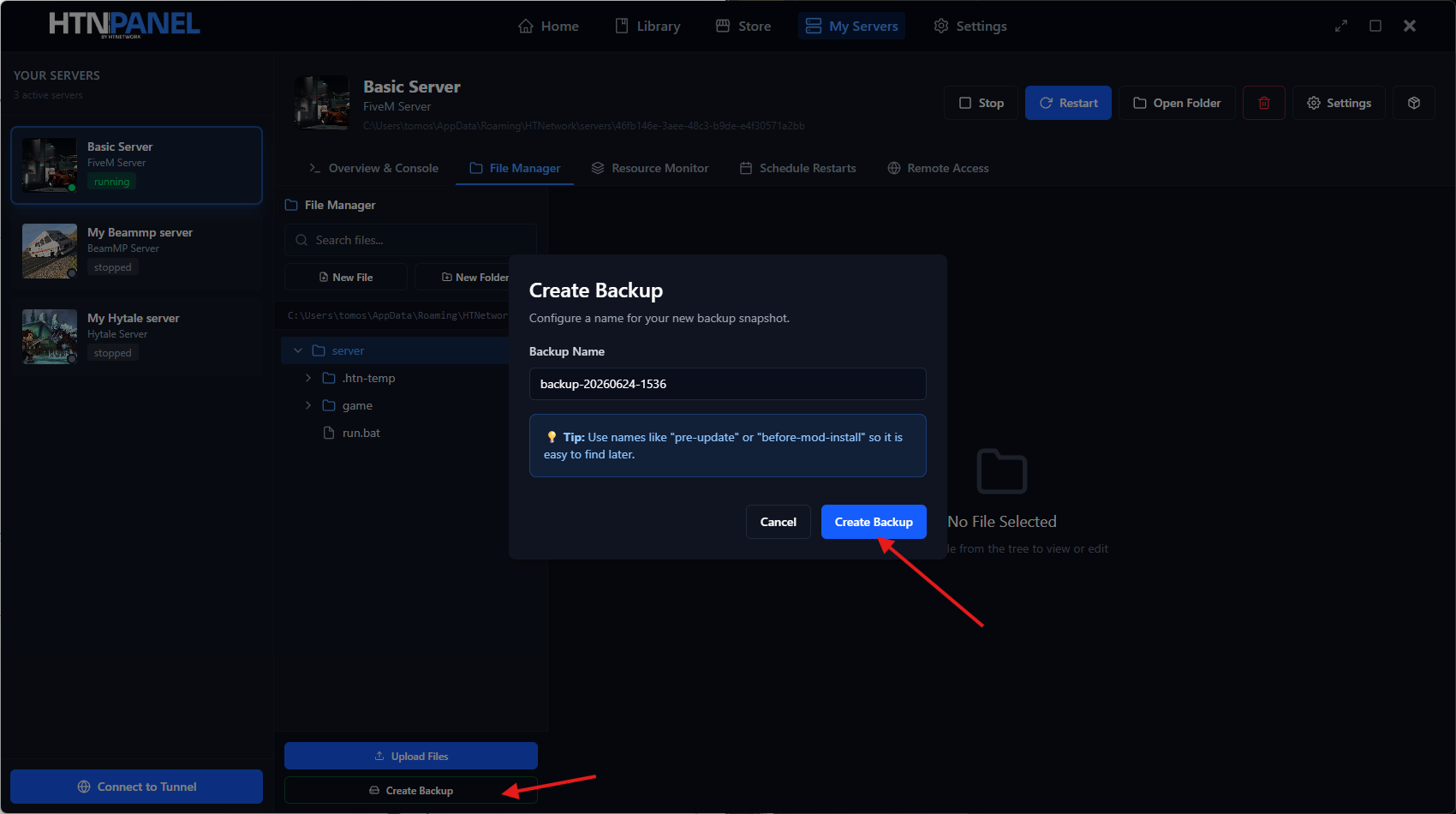
Before adding a new mod or making a major change, create a backup inside HTN Panel.
You can name the backup something clear, such as:
Before adding police cars
or
Before installing new framework update
If something breaks, you can restore the backup and go back to the working version of your server.
You can also download a backup as a zip file, which is useful if you want to move the server to another PC or keep an offline copy.
This is a huge advantage for beginners because it gives you room to test things without destroying your whole server.
Step 10: Give developers safe remote access
One of the worst ways to give someone access to your locally hosted server is by giving them remote desktop access to your entire PC.
That is risky and unnecessary.
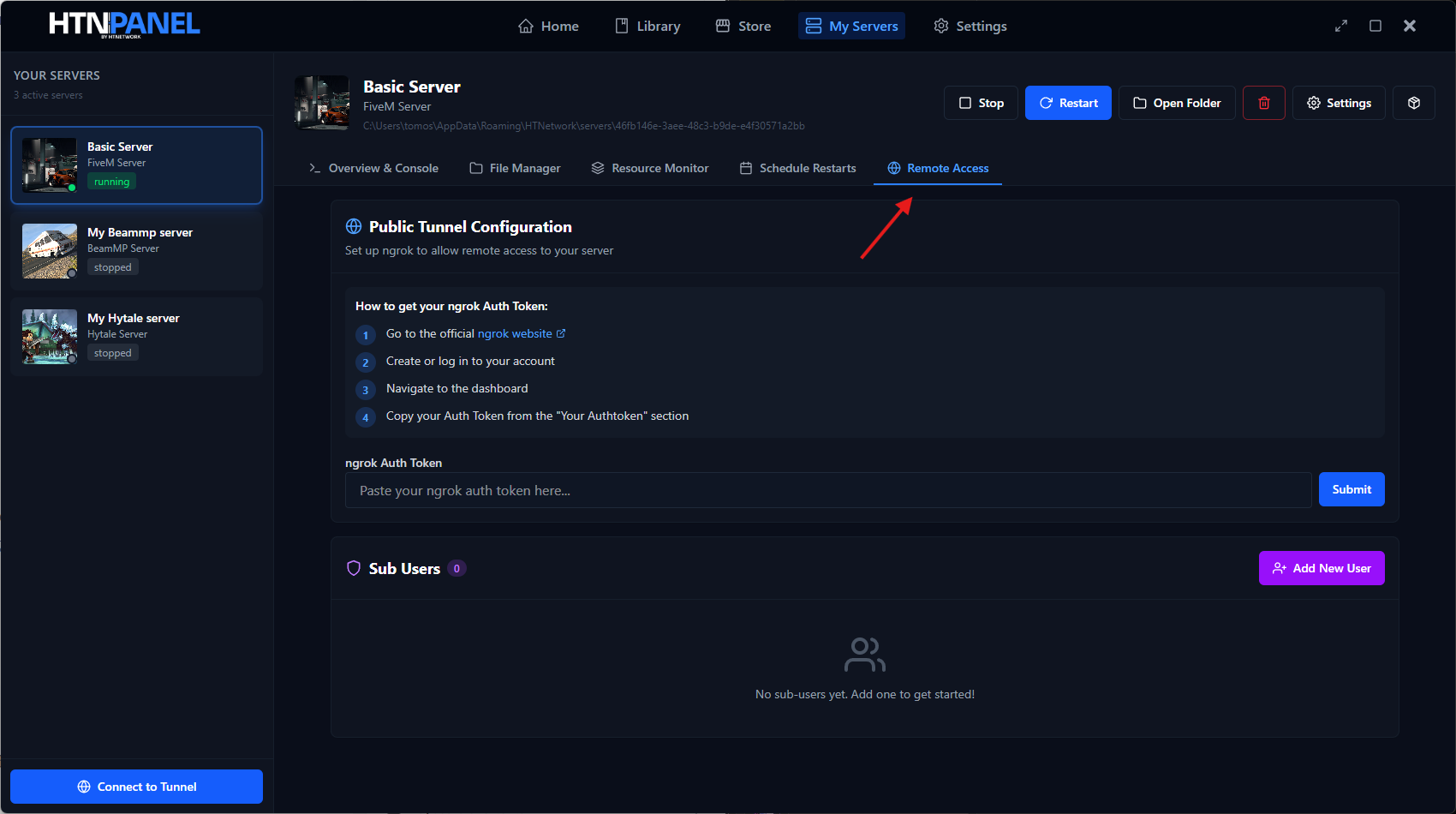
HTN Panel includes remote access so other trusted users can manage the server through HTN Panel without accessing the rest of your computer.
You can let developers access the server panel so they can:
- Start the server
- Stop the server
- Restart the server
- Access the file manager
- Add files
- Edit files
- Create backups
- Manage selected server settings
You can also control what permissions each user has.
For example, you might allow a developer to edit files but not delete files. Or you might let a staff member restart the server but not change settings.
This is much safer than handing over full access to your PC.
Step 11: Change server settings
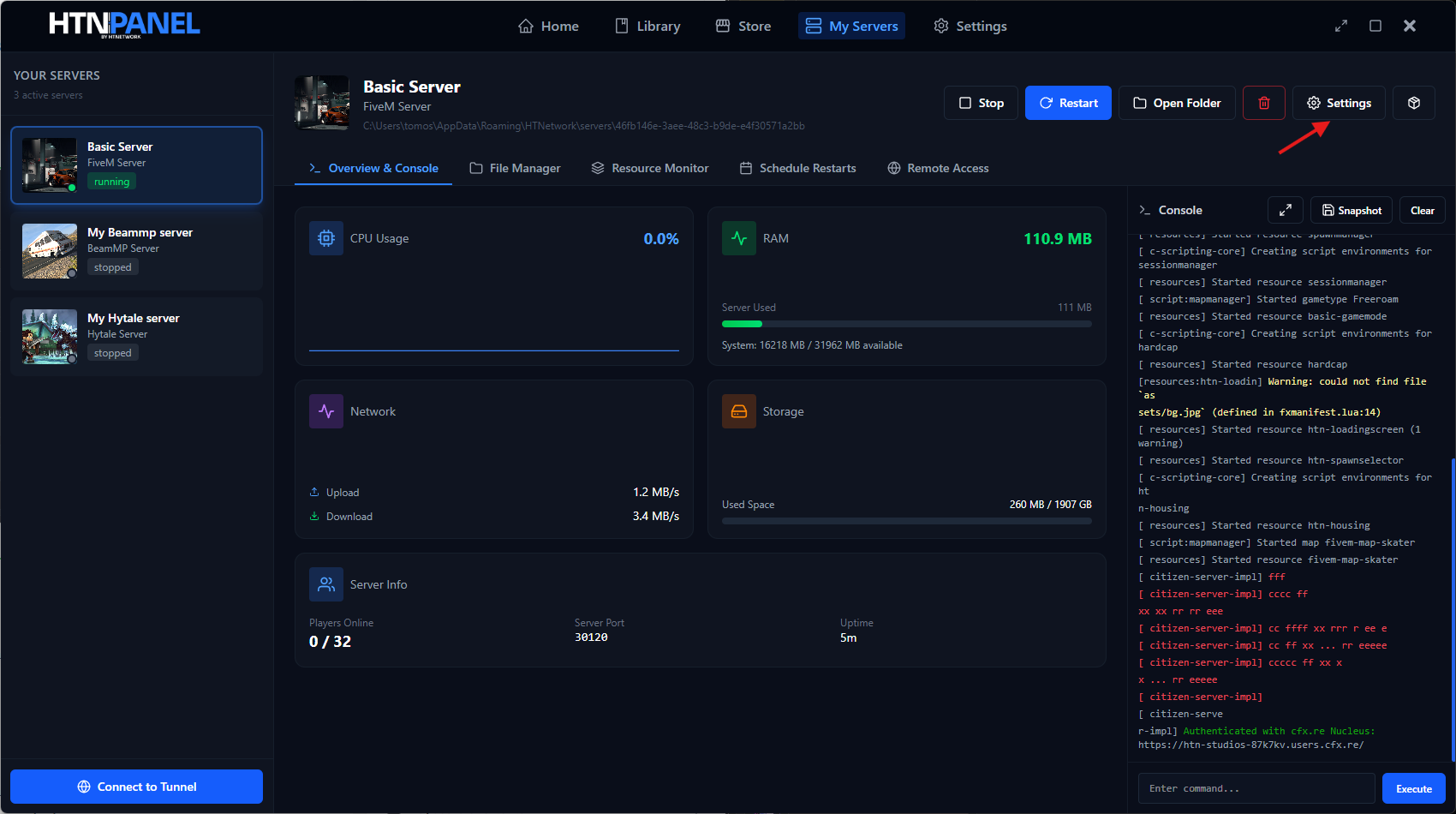
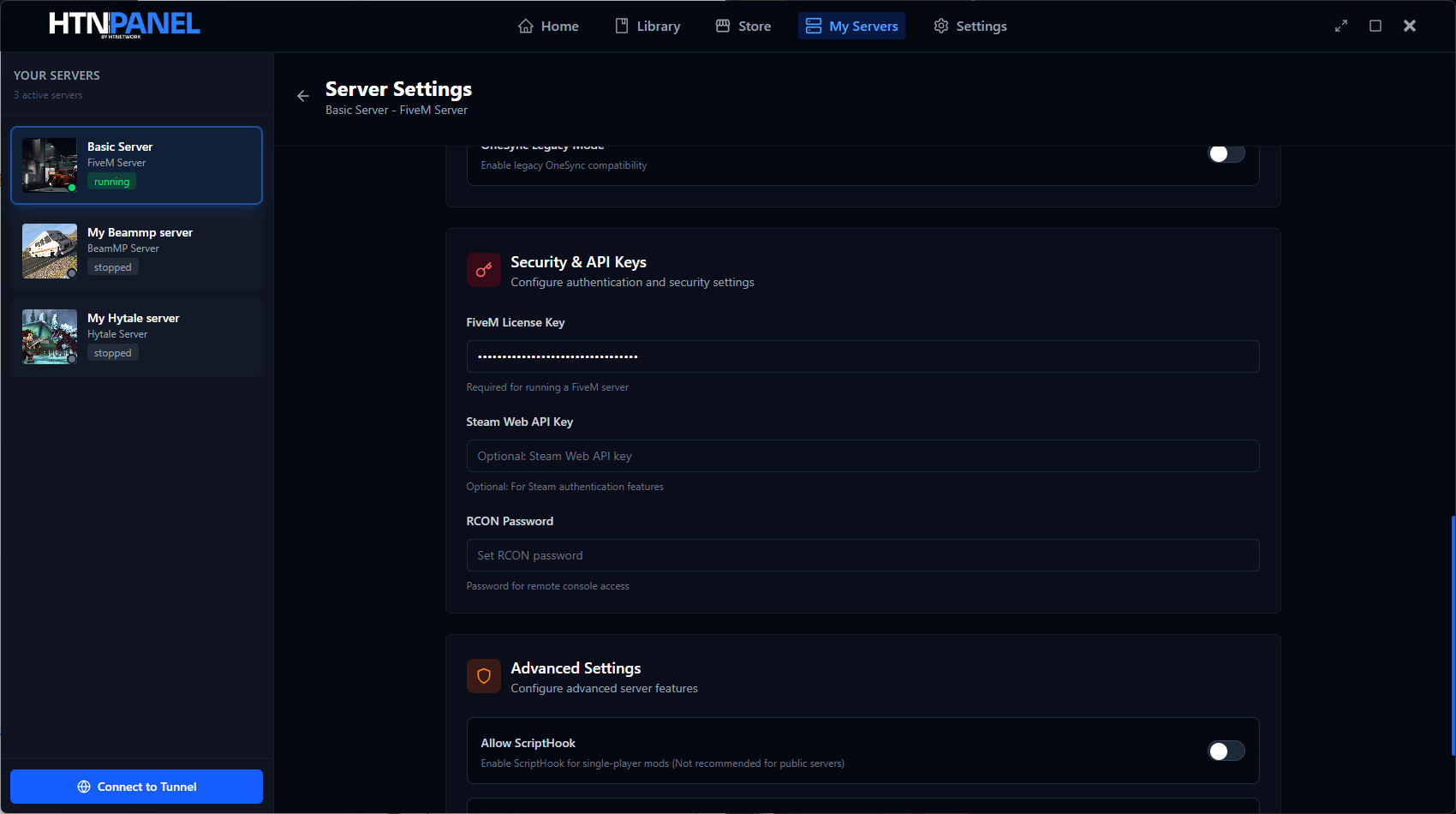
HTN Panel also gives you a server settings page where you can adjust common FiveM settings.
You can change things like:
- Project name
- Server description
- Max players
- Server tags
- Game server build
- OneSync
- OneSync legacy mode
- License key
- Steam Web API key
- RCON password
- Other server config options
This makes server management easier because you do not always have to manually edit server.cfg.
For beginners, that is a major improvement.
Step 12: Install vMenu with one click
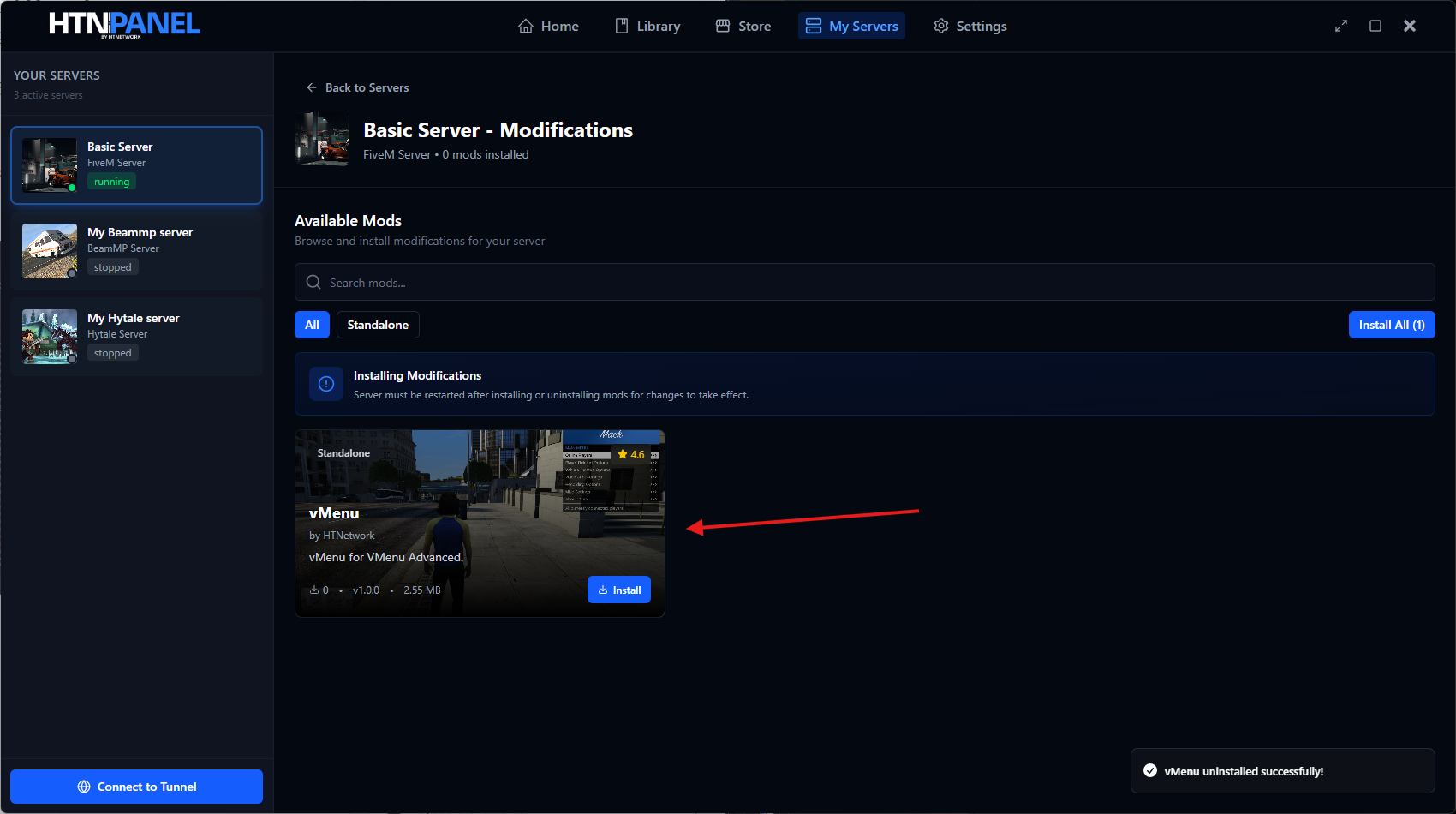
If you deploy a CFX Default FiveM server, HTN Panel can also show available modifications.
One useful example is vMenu.
Instead of manually downloading vMenu, placing files in the right folder and editing your config, you can install it through the panel where supported.
After installing it, restart your server and vMenu should be added to your FiveM server.
Over time, HTN Panel will continue adding more supported mods and one-click installs.
Step 13: Join your FiveM server
Once your server is running, open FiveM.
Your server should appear under your local/router servers, depending on your setup.
Select the server and connect.
If everything is set up correctly, you will load into your new FiveM server.
From there, you can start testing, adding scripts, changing settings and building your server into whatever you want it to become.
Can you use HTN Panel on a VPS?
Yes. HTN Panel can also be used on a Windows VPS.
This is useful if you want the same easy control panel experience, but you do not want the server running from your personal PC.
A VPS is better if you want:
- Better uptime
- A server that stays online when your PC is off
- Better networking
- A more professional hosting setup
- Less dependency on your home internet
- Easier public access for players
A local PC is great for testing and building.
A VPS is better for a real public server.
Is HTN Panel better than TXAdmin?
TXAdmin is the standard tool many FiveM server owners use, and it is still widely used.
But HTN Panel is designed for people who want a simpler all-in-one experience.
With HTN Panel, you can manage your FiveM server from one app, including files, backups, console, settings, remote access and mod installs.
The main difference is convenience.
TXAdmin still works, but HTN Panel removes a lot of the manual work around it.
For new server owners, that matters.
Is hosting a FiveM server on your PC worth it?
Hosting a FiveM server on your PC is worth it if you are:
- Learning FiveM
- Testing scripts
- Building a server before launch
- Running a private server for friends
- Developing resources
- Trying to avoid paying for full server hosting immediately
But if your server starts growing, you should move to a proper VPS or dedicated setup.
Your home PC and home internet are not the long-term answer for a serious FiveM community.
Use local hosting to build.
Use proper hosting to scale.
Final thoughts
If you want to host your own FiveM server on your PC, HTN Panel is one of the easiest ways to get started.
You can install the server, choose your framework, add your CFX key, manage files, create backups, give developers remote access, edit settings, install mods and connect to the server without dealing with the usual messy setup process.
For beginners, that saves time.
For developers, it makes testing easier.
For future server owners, it gives you a much cleaner way to build your FiveM server before moving to a VPS.
If you want to start your own FiveM server, download HTN Panel from HTNetwork and get your server running today.
FAQ
Can I host a FiveM server on my own PC?
Yes, you can host a FiveM server on your own PC. This is useful for testing, development, private servers and learning how FiveM works. For a public community, a VPS is usually better long term.
Do I need TXAdmin to use HTN Panel?
No. HTN Panel is designed to let you deploy and manage your FiveM server without relying on the usual TXAdmin workflow.
What port does a FiveM server use?
The standard FiveM server port is 30120. HTN Panel automatically fills this in during setup, although you can change it if you need to run more than one server.
Can I install QBCore with HTN Panel?
Yes. HTN Panel supports public/community framework options including CFX Default, QBCore, Qbox and ESX.
Can I give my developer access to my local FiveM server?
Yes. HTN Panel includes remote access features so you can give trusted users access to your server panel without giving them full remote desktop access to your PC.
Can I use HTN Panel on a VPS?
Yes. HTN Panel can be used on a Windows VPS as well as your own PC. This is a good option if you want better uptime and a more professional hosting environment.
Should I host my FiveM server locally or on a VPS?
Use local hosting if you are testing, developing or building your server. Use a VPS if you want to run a public server that stays online properly.